

Report Debugger
Find problems fast and "get inside" your Crystal Report's execution with Report Debugger's powerful monitoring capabilities.
Report Debugger - $149
Product Overview
Report Debugger lets you monitor debug output for your Crystal Decisions Crystal Reports. The product integrates with the Crystal Report designer program using the Crystal formula editor.
The purpose of Report Debugger is to help developers locate problems in their formula code. Report Debugger achieves this by giving developers the ability to send detailed information from their formula code to a specialized receiver while the Crystal Report is running.
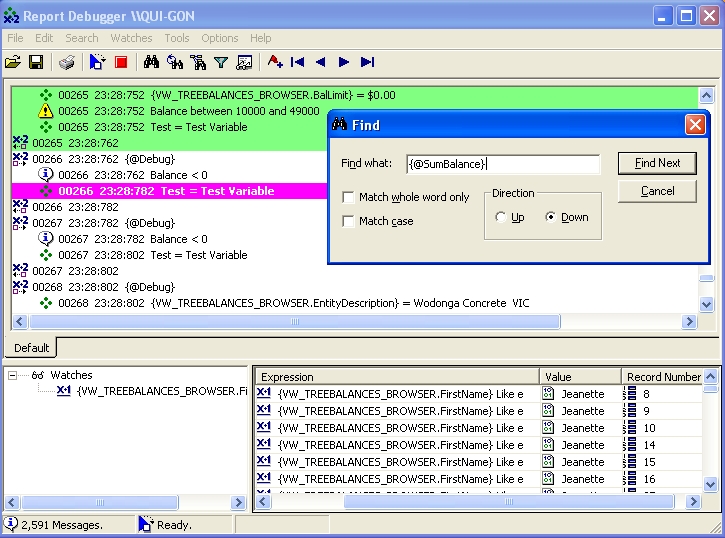
Sending messages from a Crystal Report is accomplished by using function calls in the Crystal Report formulas. For example, the DebugSendMsg() function can be used to send a simple string message. There are several functions that support sending information to the Report Debugger receiver.
Consider the following formula:
Local StringVar strTest := "hello";

	Local StringVar strResult := "";
strResult := Mid(strTest, 2);

	DebugSendMsg("strResult = " + strResult);
strResult := Mid(strTest, 2, 1);

	DebugSendMsg("strResult = " + strResult);
strResult;
By entering the DebugSendMsg() function, the values of the variable strResult will be written to the Report Debugger receiver at run time. The resulting history of values written enable you to determine what is occurring in the formula for each record read. This technique can be used for all sorts of objects: database fields, report fields and formulas. Shared variables can now be monitored between the main report and subreports, providing complete feedback on code execution for each record read by Crystal Reports.
Features
Report Debugger provides a rich environment for monitoring Debug functions called in your Crystal Report Formulas:
Filtering - Messages in the receiver can be filtered by message type, record number, string searches, and object names. These filters can be color customized and stored in a series of additional tabs in the viewer.
Watches - You can set specific criteria for monitoring message values using "watches" as your Crystal Report executes. Watches are valuable for monitoring specific conditions without having to code those conditions in your Formulas.
Saving and Loading Logs - All debug output recorded can be saved to a log and later re-loaded into the viewer for use.
Searching - String searches can be executed in addition to setting bookmarks and jumping to specific message types.
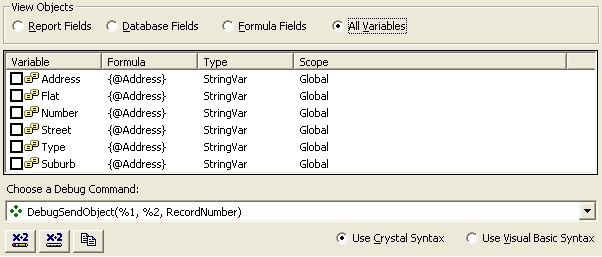
Debug Builder - A wizard which helps you build Debug commands for your formulas. The Wizard opens a nominated Crystal Report and parses all database fields, formulas and code variables enabling you to quickly build debug statements for each. This is a great time saver for checking lots of code variables.
More Information
More information is available in the help file. The demo version of Report Debugger is fully functionally with a limit on the number of messages that can be sent to the receiver at run time.
